Thursday, October 22, 2015

Remote connection failed with the error, outdated entry in the DNS cache

Last day I came across an issue where an user was not able to take remote of a windows VM using the server name however he was able to take remote of it using IP. He was getting an outdated DNS entry related error when taking RDP using server name, 


In first look it looks like a local dns cache related error so cleared the dns cache of his system by running ipconfig /flushdns and tried to connect again but end up with same error. Then I tried to connect to affected server from my system but as earlier got the login screen and after entering my credential as soon as I hit enter, end up with the same “…..This could be caused by an outdated entry in the DNS cache….” Error. Then I tried to login using the IP address of the server and was able to login without any issue.
After some investigation I noticed the affected system's time is different than the DC means not in sync with DC/DNS server so I restarted the Window Time Service and ask the user to try to login and this time user was able to login without any issue.

One can start the windows service either from services manager (Run => services.msc) or from command prompt. To restart the windows service from cmd run below commands.

net stop w32time
net start w32time 

Once the Windows time service would restart system  will sync the time with DC again and you will be able to login using server name.

Note: this issue is related to Windows time sync with DC so I'm sure it's not specific/limited to VM. 

That's It... :)


Wednesday, October 14, 2015

Lost connectivity to the device mpx.vmhba32:C0:T0:L0 backing the boot filesystem : HP ProLiant Gen9 Server

Last day when I logged in to vCenter I noticed one of the host with warning icon and upon checking in summary tab found this warning,

This warning message is indicating the Embedded Flash/SD-Card (esxi embedded install) is no longer available to the ESXi host.  As this a HP ProLiant server so logged into iLO, checked into diagnostics and found the SD-Card status ok then taken a look into ilo logs and found SD-card was restarted recently.

The good news is that the whole ESXi OS loads into memory so there was no outage for the VMs and once the connectivity would restore the host can access the storage again. The bad news is that the error did not clear automatically and as no one likes to see errors/warning in their production environment so I needed to find a solution to this issue.

The simplest solution of this issue is to put the host in maintenance mode and restart the management agents. One can do this by two ways, either connect to the host using ssh and run below commands,

/etc/init.d/hostd restart
/etc/init.d/vpxa restart
Or alternatively connect to the host using iLO, establish a remote connection, login to DCUI and restart the management agents.
                                       
Once the managements agents restart will complete, vCenter will show the host back in a normal state.

Note: There might be cases where SD-Card having issues due to buggy firmware and in order to fix the issue you may need to upgrade or downgrade the firmware.
we are at firmware version 2.20 and as per various forums this version have SD-Card related bug and that was supposedly fixed in firmware version 2.22, as version 2.30 is also available so one may upgrade to one of these versions of firmware.

Other Scenario: What if SD-Card is failed, you can try to remove and reattach the SD-Card but if it still doesn’t come online then you need to call the server vender for its replacement. 
But if SD-Card is bad, migrate all VMs to other hosts then put the host in maintenance mode and take backup of host configuration. Now shut down the host and after replacing the flash drive reinstall the esxi (As the host will not come up after reboot), once the host comes up, configure the management network and VLANs then restore the host configuration.

Reference: Daniel's blog and discussion on other forums.

Update, 05/11/2015:- This week we faced the same issue again so instead of fixing it myself contacted HP support and they confirmed the issue is with firmware version 2.20 that we have on these G9 server.


Response from hp support:  That version 2.20 has been removed from our site due to it causing issues with server components, including the embedded flash cards. . The new iLO firmware 2.22 addresses/fixes issues with the embedded cards disconnecting.
  

That’s it… :)


Thursday, October 8, 2015

vCenter Server 5.5 installation/upgrade stuck at Orchestrator installation screen

Last day when I was re-installing vCenter server in our test environment, came across this issue where vCenter install process stuck at Orchestrator installation screen for indefinite time (waited for around two hour). 
Initially I thought there might be something wrong with my machine as I had not rebooted the system after vCenter uninstall so I clicked on cancel to end the installation without success then I had to kill the installation process from task manager.
Once the installation terminated, I uninstalled the SSO, inventory service and Orchestrator (yes it was there in add remove program) and rebooted the system. After reboot installed SSO, inventory service and then initiated the vCenter installation again but to my surprise, vCenter installation stuck on same Installing Orchestrator screen again. Then I started Googling about this issue and found a VMware KB article about the same.
As per KB# 2051216,

This is a known issue affecting vCenter Server 5.1 Update 1 and vCenter Server 5.5

To work around this issue:
  1. In the Windows Task Manager, locate the vRealize Orchestrator (formerly known as VMware vCenter Orchestrator) processes. For example, you may see processes similar to:

    vCenterOrchestrator.exe *32 InstallAnywhere Self-Extractor
    vCenterOrchestrator.exe *32 LaunchAnywhere
  2. End the process tree for the vCenterOrchestrator.exe *32 LaunchAnywhere process.

    The vCenter Server installer should now complete successfully.
Note: If you are a user of vRealize Orchestrator (formerly known as VMware vCenter Orchestrator), you can complete the configuration manually through the vRealize Orchestrator configuration service.

Related KB article# 2045613.

That's it... :)


Sunday, October 4, 2015

Looking up MoRef (Managed Object Reference) IDs in vSphere environment

Today I saw a question about VM MOID like how to get it. The answer could be pretty simple like using RVTools,
But what are the other ways, before talking about that, first understand what this MoRef ID is. Every object within a vSphere environment is internally tracked, and has a unique identifier called moRef ID. A Managed Object Reference ID also known just as MoRef ID is a unique value that is generated by the vCenter Server and is guaranteed to be unique for a given entity in a single vCenter instance.
This identifier is composed of a prefix stating the object type, followed by a numerical ID, for example:

host-25
vm-11
datastore-09   etc.

You can check the MoRef ID of a host by going to this URL:
https://vC_Server FQDN_or_IP/vod/index.html


Now we will look up the specified moRef ID using Managed Object Browser it will show you the corresponding object with all its properties, including its name of course.for other objects. Go to https://vC_Server FQDN_or_IP/mob/?moid=host-id


From here you will get the MoRef IDs of other objects and can get further detail about the by using managed object browser.

To check moRef IDs using PowerCLI, for this connect to your vCenetr or a host using using the Connect-VIServer cmdlet,
Connect-VIServer <vcenter_or_host> -User uaser_name -Password *****

After you have successfully connected, the Get-<object_type> cmdlets allow you to know which object has a particular MoRef ID in no time,
Get-VMHost | ft -Property Name, ID


The “ID” field returned by PowerCLI is actually the moRef, preceded by a slightly more “verbose” string stating the object type.
Replace Get-VMHost with  Get-VM or Get-Datastore to carry out equivalent operations on other object types

You can always search for a specific ID, just be sure to add an asterisk (*) before the moRef ID you are looking for so you don’t have to include the object type string every time.
Get-VM -ID *moRef_id | ft -Property Name,ID                                        or
Get-Datastore -ID *moRef_id | ft -Property Name,ID -AutoSize

Reference: Danilo Chiavari and William Lam's blog posts.

That's it... :)


Tuesday, September 29, 2015

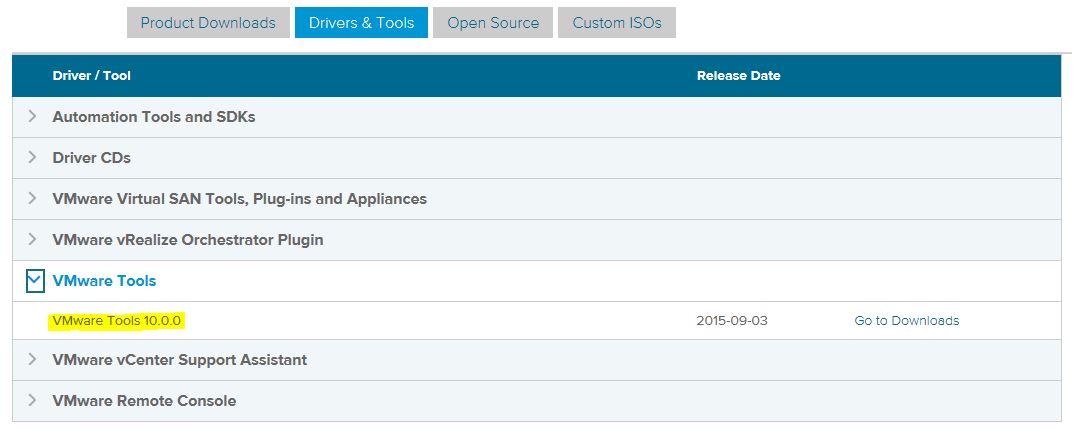
VMware tools 10.0.0 released and in future it would be a separate release

With the separate release of VMware tools 10.0.0 now VMware made clear, VMware Tools release is no more tied with vSphere release/Esxi builds. I think this is the first time when VMware released VMware Tools separately. As per release note its backward compatible, compatible with Esxi 5.0 and also compatible with Workstation 12.0 and VMware Fusion 8.0.

As per VMware it will allow to get the latest new features and enhancements made to the VMware tools faster to the customers. And that there is no specific reason not to do so.

You can download and install the latest version of VMware Tools from Here,

 
Yes, VMware now also including release notes specific to VMware Tools. This will allow one to see what’s new in each release, along with compatibility, installation/upgrade information etc.

Full release notes is available Here,

Reference: Brian Graf's blog Post on VMware Blog.


That's it... :)


Saturday, September 19, 2015

How to fix Configuration issue: Unable to apply DRS resource settings on host

Last day when I was looking At my vCenter instance, found two hosts with read explanation mark on them and when checked found this configuration issue related message in summary: “Unable to apply resource settings on host. The available CPU resources in the parent resource pool are in sufficient for the operation. This can significantly reduce the effectiveness of DRS.”

Interestingly DRS is not enabled for the cluster where these hosts are located so what is the cause of this error (you may also see this kind of configuration issue message on host in a DRS enabled cluster).
When I was looking for the reason of the same, found resource reservations configured for most of the VMs in this four host cluster. I had seen this error earlier and that time was able to fix it by offloading some VMs from that host to another however this time that didn’t work and even another host started showing the same configuration issue then I tried to remove reservation but that also didn’t work.
Note: If there are enough resources available in the cluster then you may safely ignore this configuration error message. 

These are the potential fixes of above configuration error:
In order to remove this configuration error message what we can do is, first enable DRS on this cluster (if already enabled, disable it and then re-enable) and leave it for some time (if you don’t want to leave it then you may run DRS manually), if you are lucky then this would fix this the issue.

An unfinished VMware tools installation (where you initiated tools installation but it never finished) also could be a reason of this configuration issue. If that is the case, Mark that by right clicking on it => Guest => End VMware Tools Install. It will resolve the issue and the error will disappear.

If that doesn’t work then in order to fix this you will have to restart management agents on affected servers (restart the hostd and vpxa agents). After restarting the management agents this configuration issue related message will go away.

For detailed info refer to VMware KB# 1028351, 1004667

If you have seen this configuration issue before and fixed it using any other way, please share in comment area.

That's it.... :)


Thursday, September 17, 2015

How to Speed-up P2V conversion process: disabling SSL etc

It’s a long time since I have not done any physical to virtual conversion myself so was not aware about this, starting with VMware vCenter Converter Standalone 5.x, during P2V conversion the converter encrypts the data using SSL. Encrypting the traffic increases the security, but it may decrease the performance. For a small server you may not notice this but if you are doing P2V of a physical server that have a large drive attached then you will see a long estimation time.

First thing first, to speed-up conversion process disable SSL encryption in VMware vCenter Converter Standalone. This involves editing one xml file on the physical machine being converted, to avoid SSL related slowdown, takes about a minute to do but would significantly reduce the P2V conversion time.
To disable SSL for vCenter Converter, as per your Windows OS version go to following location:

In Windows 7/Server 2008 and Later : C:\ProgramData\VMware\VMware vCenter Converter Standalone

In Windows Vista, XP and 2003 Server: %ALLUSERSPROFILE%\VMware\VMware vCenter Converter Standalone

In older Windows versions: %ALLUSERSPROFILE%\Application Data\VMware\VMware vCenter Converter Standalone

  • Locate the converter-worker.xml file in VMware vCenter Converter Standalone foder, first take backup of this file(just in case something goes wrong) and then open it with any text editor like Notepad
  • Now locate the tag pair <useSsl></useSsl>. It is located inside the <nfc> tag and has a value of true. 
  • Change the value from true to false, Save and close the file.

  • Restart the VMware vCenter Converter Standalone Worker service on the machine.
After disabling the encryption you would immediately saw dramatically reduced estimated times to completion.

Another thing that you can be do to speed-up P2V process is, you can increase the value in the Number of Data Connections per Task option in Converter settings. If you are converting the source with multiple disks and volumes, it would decrease the conversion time by cloning multiple disks and volumes concurrently.
To do this, In the Converter GUI main menu, select Administration > Data Connections per Task to modify the settings.

Cloning too many volumes from the same source disk in parallel can increase disk access times and consequently increase conversion time.

Also take care of other P2V pre-conversion best practices.

Reference: VMware KB# 2071014  

That’s it… :)